
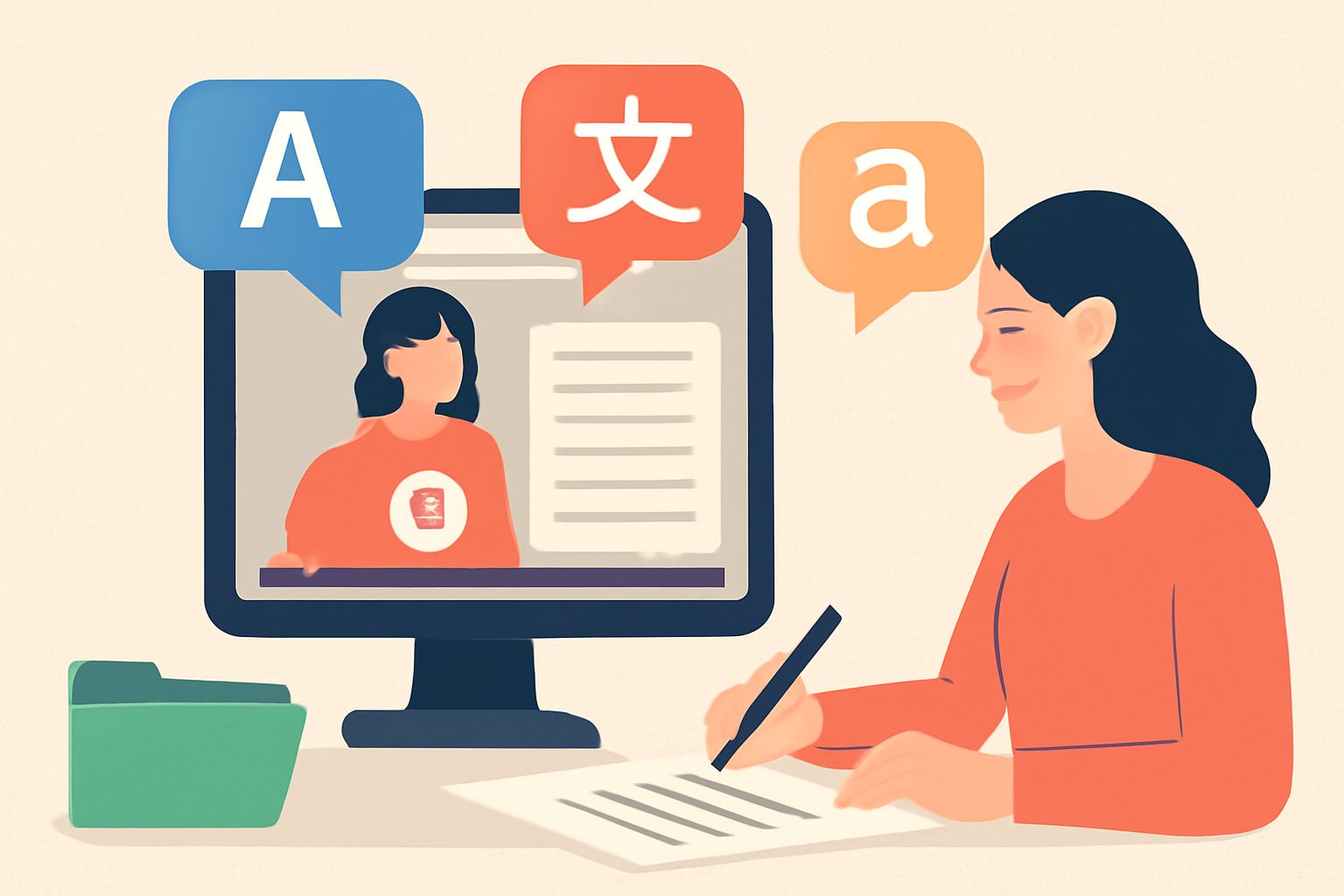
Creating subtitles for a video is a vital part of making content accessible, searchable, and engaging. Whether it’s for viewers with hearing impairments, for international audiences who speak different languages, or simply for those watching videos in sound-off environments, subtitles play an essential role in broadening your content’s reach. A video to text converter is an excellent tool for quickly and efficiently transcribing spoken content into text, helping you create subtitles that serve multiple purposes.
Why Subtitles Matter
Subtitles aren’t just a nice-to-have feature; they are critical for enhancing the accessibility of video content. By providing text representation of spoken dialogue, subtitles ensure that your video can be understood by those who are deaf or hard of hearing. They also make content easier to consume for those watching in noisy or silent environments, as many people prefer watching videos without sound, especially on mobile devices in public spaces.
Moreover, adding subtitles to your videos also has significant SEO benefits. Video content is often less searchable due to the lack of text. Subtitles make your video more searchable by search engines because they provide readable text that can be indexed, improving your content’s visibility. This not only broadens your audience but also boosts engagement and retention by allowing viewers to follow along with the dialogue more easily.
Steps to Transcribe Video for Subtitles
1. Select the Right Video to Text Converter
The first step in transcribing your video to create subtitles is choosing the best video to text converter. These transcription tools use speech recognition technology to automatically convert spoken words into written text. However, not all converters are created equal. It’s important to pick a tool that suits your needs, especially in terms of language support, accuracy, and ease of use.
Some converters may work well for clear, slow speech, while others might struggle with complex dialogues or heavy accents. Make sure to try different tools to see which one works best for your videos. Additionally, some converters allow you to transcribe videos in multiple languages, which is helpful if you’re working with international content.
2. Upload the Video
Once you’ve selected your video to text converter, upload the video file. Most transcription software supports various formats, such as MP4, MOV, AVI, and more. Before uploading, ensure your video has good audio quality. Clear and high-quality sound is essential for achieving an accurate transcription. Background noise, poor recording quality, or distorted audio may negatively affect the accuracy of the transcription.
If you are transcribing multiple videos, batch upload options are available in some converters, making the process more efficient and time-saving.
3. Edit the Transcript
While a video to text converter can transcribe video files quickly, the result is often not perfect. You may need to make several edits to ensure that the text is accurate and makes sense. Review the transcript for errors such as missed words, awkward phrasing, or misinterpretation of specialized vocabulary.
It is also important to clean up the text by correcting punctuation, capitalizing proper nouns, and formatting the text for readability. For subtitles, ensure that speaker labels (if necessary) are included, and that the text is segmented into manageable, readable chunks. This will enhance the user experience, as long, continuous lines of text are hard to follow.
4. Sync the Text with the Video
After editing the transcript, it’s time to sync the text with the video. Subtitle synchronization is a key part of creating a seamless viewing experience. Good subtitle timing ensures that viewers can read the text at the right pace without feeling rushed or confused.
Most subtitle editing software allows you to adjust the timing of each subtitle segment. You can manually adjust the in and out points for each subtitle to match the audio accurately. Many tools also provide options for real-time previewing, allowing you to test how well the subtitles match up with the dialogue.
5. Export and Save the Subtitles
Once you have completed the editing and syncing, you are ready to export your subtitles. The most common subtitle file formats are .SRT, .VTT, and .ASS. These file formats are compatible with various video platforms such as YouTube, Vimeo, and other video hosting services.
When exporting, double-check the settings to ensure that the subtitles will appear correctly when uploaded. You may also want to verify that the subtitles are displayed in the correct font and size on your platform of choice. Once saved, you can upload the subtitle file alongside your video, making it accessible to a broader audience.
Common Challenges When Transcribing Videos for Subtitles
While transcription tools have become much more accurate over time, there are still common issues that can affect the quality of subtitles. Here are a few challenges you may encounter:
-
Accents and Dialects: Transcribing content with heavy accents or regional dialects can be problematic for video to text converters. The software may struggle to accurately transcribe words, leading to errors.
-
Background Noise: Background sounds, music, or multiple people talking at once can confuse transcription software, resulting in inaccurate text. Clear, isolated speech makes for more accurate transcription.
-
Technical Terms: If your video contains technical jargon, industry-specific language, or uncommon phrases, automated transcription tools might not catch these words. In these cases, manual corrections will be necessary.
-
Overlapping Dialogue: If several people are speaking at once, it might be difficult for transcription tools to differentiate the speakers and transcribe everything accurately. Using speaker identification features (if available) can help, but some manual intervention will likely still be required.
Tips for Improving Subtitle Accuracy
To ensure the best possible transcription, consider these tips:
-
Use High-Quality Audio: Clean, clear audio results in a more accurate transcript. Invest in a good microphone and record in a quiet environment.
-
Test Different Tools: Different video to text converters have varying degrees of accuracy. Test a few options and pick the one that works best for your content.
-
Proofread the Transcript: Always proofread the transcript after the initial conversion to catch any errors that may have slipped through. Use a second pair of eyes if possible.
-
Use Professional Services for Complex Videos: For high-stakes or technical content, you may want to use professional transcription services. These services often employ human transcribers who can handle complex dialogues and accents more effectively than software.
Transcribing video to create subtitles is an essential task for improving accessibility, SEO, and user engagement. While video to text converters make the process faster and more convenient, manual editing and syncing are still required to achieve the best results. By following the steps outlined above, you can create accurate and well-timed subtitles that enhance the viewer’s experience and broaden the reach of your video content.